How to Create a Discord Account Step-by-Step: Complete Guide (with Visual Diagram)
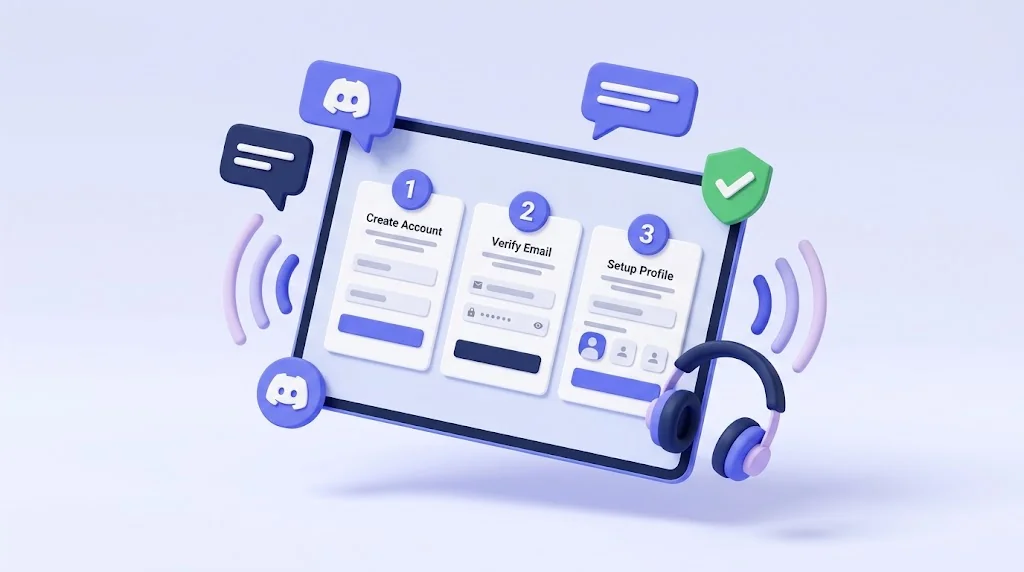
The ultimate guide to creating and securing your Discord account on PC, Mac, Web, and Mobile. Includes a visual step-by-step flowchart diagram, two-factor authentication (2FA) setup, and gaming optimization tips.
How to Create a Discord Account Step-by-Step: Complete Guide (with Visual Diagram)
In today's gaming ecosystem, Discord is the undisputed king of team communication, community hubs, and voice chat. Whether you are coordinating high-stakes rounds in *Counter-Strike 2*, teaming up for heists in *GTA Online*, hunting bounties in *Red Dead Redemption 2*, or simply hanging out with friends while streaming gameplay, having a Discord account is a must-have for every gamer.
In this comprehensive guide, we will walk you through every step to create, verify, and lock down your Discord account across desktop browsers, native apps, and mobile phones, complete with an intuitive visual flowchart diagram.
Visual Diagram: Account Creation Workflow#
Before jumping into the step-by-step instructions, here is the complete visual pipeline from start to finish:
Step-by-Step Account Creation Pipeline
EXECUTION PIPELINE // SEQUENTIAL ACTION PROTOCOL
Choose Your Platform
Visit discord.com in any modern browser, or download the app for Windows, macOS, Linux, iOS, or Android.
Fill Registration Details
Enter your email address, unique username, display name, and a strong password.
Set Date of Birth
Enter your accurate birthdate (required for age compliance under COPPA/GDPR; minimum age 13+).
Verify Your Email
Open the verification email sent to your inbox and click 'Verify Email' to activate all account privileges.
Enable 2FA Security
Guard against token grabbing and unauthorized logins using Google Authenticator or 1Password.
Join Gaming Communities
Customize your gamer avatar, configure voice suppression, and join gaming servers like OGmodz.
If you prefer an architectural diagram of the system flow:
Method 1: Creating an Account on PC (Web Browser or Desktop Client)#
Creating your account on a computer takes less than 3 minutes. Here is the easiest walkthrough:
Step 1: Open the Official Discord Portal#
- 1Navigate to discord.com in your preferred web browser (Google Chrome, Firefox, Brave, Microsoft Edge, or Opera GX).
- 2You will see two buttons:
- "Download for Windows" (or macOS): Downloads the standalone desktop application. We strongly recommend this for gamers because it supports global push-to-talk keybinds and in-game overlays.
- "Open Discord in your browser" / "Login": Allows you to register and use Discord right in your browser tab without installing anything.
- 1Click "Login" in the top-right corner, then select "Register" located right underneath the login button.
Step 2: Fill Out Your Account Details#
On the registration screen, enter the required fields:
- Email: Use an active email that you control. This will be used to recover your account if you forget your password.
- Display Name: The nickname other gamers will see in voice channels and chat lobbies (you can change this at any time for free).
- Username: Your unique global handle (e.g.,
shadow_gamer99). This is lowercase, can contain dots and underscores, and identifies your profile. - Password: Choose a secure, unique password containing at least 12 characters, including uppercase letters, numbers, and symbols.
- Date of Birth: Select your actual birthdate. Discord requires users to be at least 13 years old (or 16 in select European countries) to comply with data privacy regulations.
Click Continue and solve the quick hCaptcha challenge (e.g., clicking images of motorcycles or puzzle pieces) to confirm you are human.
Step 3: Verify Your Email Address#
- 1Discord will prompt a banner: *"Please check your email to verify your account"*.
- 2Open your email inbox, find the email from Discord with the subject *"Verify Email Address for Discord"*, and click the purple Verify Email button.
- 3Once verified, you gain full access to join public communities, send direct messages (DMs), and talk in voice channels.
Method 2: Creating an Account on Mobile (iOS & Android)#
If you are on an iPhone, iPad, or Android smartphone:
- 1Open the Apple App Store (iOS) or Google Play Store (Android).
- 2Search for "Discord" and tap Install / Get.
- 3Launch the app and tap the blue "Register" button.
- 4You will be given the option to register via Phone Number or Email.
Pro Tip: We recommend registering via Email, as phone numbers can occasionally get recycled by telecom carriers. You can always bind your phone number later for extra security.
- 1Enter your email, username, display name, password, and birthdate.
- 2Check your inbox and tap the verification link to activate your mobile profile.
Crucial Step: Securing Your Account with 2FA#
Every year, thousands of gaming accounts fall victim to session token hijackers and malicious links sent in compromised DMs. Turning on Two-Factor Authentication (2FA) guarantees that no one can access your account even if they guess your password.
How to Enable 2FA:#
- 1Open User Settings (click the gear icon next to your avatar at the bottom-left of Discord).
- 2In the left sidebar, click My Account.
- 3Under the *Password and Authentication* section, click Enable Two-Factor Auth.
- 4Enter your account password to confirm your identity.
- 5Open an authenticator app on your phone (such as Google Authenticator, Authy, or 1Password) and scan the QR code displayed on screen.
- 6Type the 6-digit confirmation code generated by your authenticator app.
- 7Download your Backup Codes: Save the 8-digit emergency backup codes in a safe place. If you ever lose your phone, these codes are the only way to recover access.
Audio & Voice Optimization for Gaming#
Before jumping into your first voice channel, take 60 seconds to configure your microphone settings so you sound crisp and eliminate annoying background noises:
- 1Go to Settings -> Voice & Video.
- 2Input Device: Ensure your gaming headset or dedicated microphone is selected (avoid using "Default" as Windows updates can change your default audio device unexpectedly).
- 3Input Mode:
- Voice Activity: Discord automatically detects when you speak. Adjust the sensitivity slider so your keyboard clatter or breathing does not trigger the mic.
- Push to Talk: Assign a handy mouse button (like Mouse 4 or Mouse 5) or keyboard key (like Left Alt or Caps Lock) to talk only when pressed.
- 1Noise Suppression (Krisp): Scroll down to *Noise Suppression* and select Krisp. This built-in AI filter cuts out dog barks, mechanical keyboard clicks, and fan noise without degrading your voice clarity.
Frequently Asked Questions (FAQ)#
Is Discord completely free?#
Yes. Discord is 100% free to download, create an account, create unlimited servers, and chat with friends in crystal-clear audio and video. Discord offers an optional paid subscription called Discord Nitro for cosmetic perks (custom emojis across servers, animated avatars, bigger file upload limits, and 1080p 60FPS streaming), but Nitro is completely optional.
Can I change my Discord username and display name later?#
Yes. You can edit your display name as often as you want for free. Your global username can also be updated directly in *User Settings -> My Account*.
Why am I not receiving the email verification link?#
Check your Spam, Junk, or Promotions tab. If you still don't see it after 2 minutes, click *"Resend Email"* inside Discord, and verify that you typed your email address without any typos.
Ready to Dominate Your Game?
Skip hundreds of hours of repetitive grinding. Get instant fulfillment, private VPN-protected lobbies, and 24/7 dedicated support.
Top Trending Boosts & Services


OGmodz Team
Verified SpecialistCompetitive gaming analyst and booster at OGmodz. Specializing in high-rank matchmaking algorithms, ban-prevention safety architecture, and in-game economy optimization.

